Every ad team and every teacher eventually hits the same small problem. A clip is online, you need it on your own device, and the tools that promise to help are cluttered with pop-ups and sign-up walls. A school marketing coordinator preparing an open day campaign might want to keep a reference ad. A language teacher might want a public lecture clip to play in a classroom with weak Wi-Fi. Both need a plain way to save public media, and both need to choose the quality instead of accepting whatever a tool hands over.
This article walks through the core feature of a paste-a-link saver that lists every quality option and looks at where it helps, where it does not, and how to get started. The details come from the product's own homepage, and the scenarios below are illustrations, not customer stories.
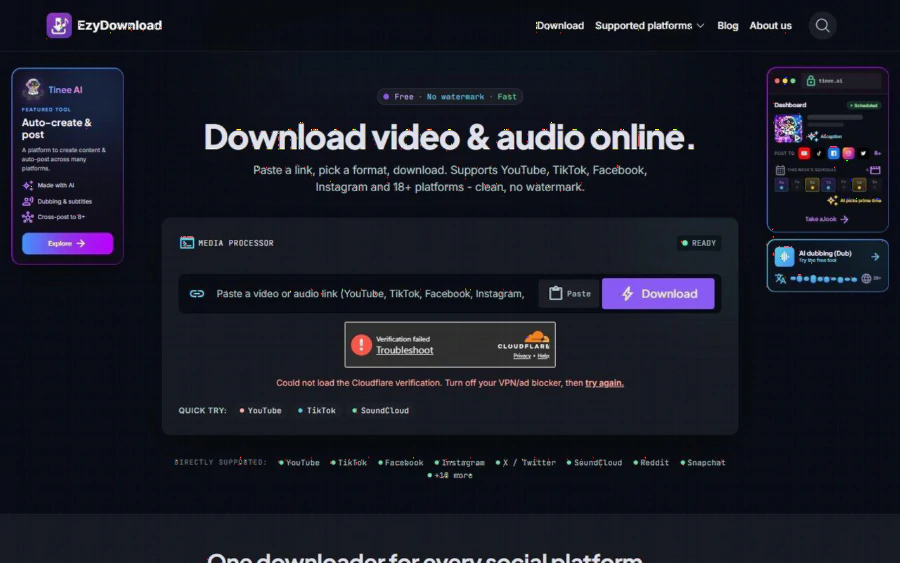
EzyDownload homepage with a link box, a Download button and a list of directly supported platforms
The main feature: paste, pick, download
The core idea is short. You paste a link, pick a format, and download. The homepage describes it in exactly those words, and the page says it supports YouTube, TikTok, Facebook, Instagram and 18+ platforms in total. There is no app to install and no extension to add. Everything runs in the browser, on desktop or on a phone (iOS and Android).
The page names six platforms as directly supported: YouTube, TikTok, Facebook, Instagram, X/Twitter and SoundCloud. Others such as Reddit, Snapchat, Threads, Tumblr, Pinterest, Rumble and Dailymotion are listed as compatible. That distinction is useful. If your daily work is on the first six, you can expect the smoothest results. For the rest, test a link before you promise a colleague anything.
For video, the page lists MP4 (H.264/AAC) and WEBM (VP9). For audio, it lists MP3 and M4A. In other words, you can keep a clip as a normal video file that nearly any laptop or classroom projector will open, or pull the sound alone.
Why choosing quality matters for ads and lessons
The homepage states that the tool always lists every available quality option, rather than forcing one fixed level. For video the range runs from 360p up to 4K (2160p) at 60 fps when the source offers it. For audio, the options include 320, 192 and 128 kbps.
Why does that matter? Think about two simple jobs.
An ad reviewer wants to read the on-screen text of a competitor's promotion: the price badge, the small print, the call to action. At 360p those details blur. At 1080p they are readable. Having the choice means you pick the size that fits the job instead of redownloading.
A teacher, on the other hand, may prefer a smaller file. A 480p copy of a talk loads faster on a shared school network and uses less storage on a tablet. Again, the point is control.
One honest caveat from the page itself: at high resolutions many platforms split the video and audio streams. EzyDownload lists the options so you can choose a version that already contains both. If only separate streams exist, you download the video and the audio separately and merge them with an external tool such as HandBrake or FFmpeg. That is an extra step, and non-technical users should know about it before they plan a 4K workflow.
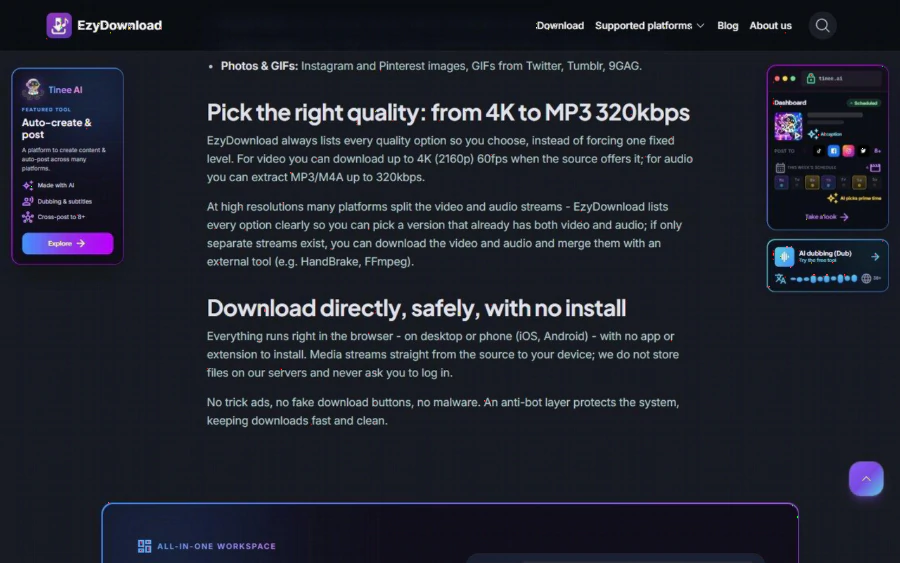
EzyDownload page section explaining quality choices from 4K to MP3 320kbps and the no-install approach
Where it fits in marketing work
Marketing teams in education and advertising often keep a swipe file: a folder of public examples that show what good looks like. A saved copy has three advantages over a bookmark. It survives if the post is removed, it plays without a connection during a workshop, and it can be annotated in a slide deck.
Here is a short illustration, clearly an example and not a real case. A small training provider is planning a short-video campaign. The coordinator collects ten public clips from different platforms, saves each as MP4 at 720p, and pulls the audio from two of them as MP3 to study the voice-over pacing. Because the tool needs no account, nobody on the team has to hand over an email address, which keeps the shared inbox free of unrelated offers.
The same workflow can support your own channels. If you publish clips on several platforms, a downloader helps you keep local copies of your public posts, provided you hold the rights to them.
Where it fits in teaching
Teachers use short public clips for demonstrations: a science experiment, a pronunciation example, a news segment for a media literacy lesson. Saving a clip beforehand removes the risk of a dead link or a buffering wheel in the middle of a class.
The page also mentions that the tool can handle formats beyond video, depending on the platform: Reels, Shorts, Stories, and photos or GIFs. That can be handy for building a visual reference set, for example public images from Pinterest or Instagram for a design lesson, again only when you have the right to use them.
Mobile support helps too. A teacher who finds a good clip on a phone during the commute can save it there instead of waiting until they reach a desktop.
Limits you should know before you start
A fair review needs the boundaries, and this product states several of them openly.
First, only public media is processed. Private accounts, paywalled content and login-protected content will fail, and DRM content is not supported. If you need a lesson clip from a subscription platform, this is not the tool.
Second, the page says that files are not stored and logs are not kept. That is reassuring for privacy, but it also means there is no library or history inside the tool. Organize your downloads in your own folders.
Third, the site carries partner promotions, including a Tinee AI card and a sponsor link in the footer. These are separate from the downloader, but you will see them on the page. When we captured the page, the verification widget also showed a Cloudflare loading error, and the page advises turning off a VPN or ad blocker and trying again. If you hit the same message, follow that advice before assuming the tool is broken.
Fourth, and most important, copyright. A technical ability to save a clip is not permission to reuse it. The page itself says that responsibility for user-shared links is not its own. Save public media for personal reference, study, offline viewing, or content you own or have a license to use. Do not republish other creators' work as your own.
Who should use it, and who should not
It is a good fit if you:
- need a free, no-account way to save public clips for reference or offline viewing
- want to choose resolution instead of accepting a fixed output
- work across several platforms and prefer one tool over many
- want audio-only files for transcription or listening
It is a weaker fit if you:
- need content behind a login, paywall or DRM
- want a built-in library, batch scheduling or team accounts
- plan to reuse other people's videos commercially without permission
How to get started
1. Copy the link of a public video or audio post from the platform you use.
2. Open the EzyDownload homepage and paste the link into the box. The page also has a Paste button.
3. Press Download and look at the list of formats and qualities.
4. Pick MP4 for video or MP3/M4A for audio, choosing the quality that suits the job: higher for reading small text, lower for saving space.
5. If the video and audio come as separate streams, download both and merge them with HandBrake or FFmpeg.
6. Name the file clearly and store it with a note about where it came from and what rights apply.
The bottom line
EzyDownload does one thing and states its limits plainly: it saves public video and audio from 18+ platforms, in formats from MP3 to 4K MP4, with no sign-up and no install. For ad reviewers and teachers who just want a clean reference copy, that simplicity is the appeal. The trade-offs are the split-stream step at high quality, the promotional elements on the page, and the fact that it cannot touch private or protected content. Use it for public material, respect the rights of the people who made it, and it can save a surprising amount of time.